Using Mesibo UI Modules for Android - Messaging
Mesibo offers ready to use UI components which you can quickly add to your applications. Mesibo UI components are completely customizable as per your needs. On Android, you can either launch the screens directly or put them in your own activities as Fragments.
There are primarily two types of Mesibo UI components:
MesiboUserListFragment, which displays a list of users in different modes. The modes are explained below.MesiboMessagingFragment, which renders all the messages for a particular user or a group
Both are configured with an options object, the same one used to launch the screens with MesiboUI.launchUserList and MesiboUI.launchMessaging.
Launching the screens
The simplest way is to let MesiboUI open the screens in their own activity:
// chat list
MesiboUI.MesiboUserListScreenOptions opts = new MesiboUI.MesiboUserListScreenOptions();
MesiboUI.launchUserList(context, opts);

// chat with a user or a group
MesiboUI.MesiboMessageScreenOptions mopts = new MesiboUI.MesiboMessageScreenOptions();
mopts.profile = profile;
MesiboUI.launchMessaging(context, mopts);
There are also utility functions for other screens, for example MesiboUI.launchCreateGroup, MesiboUI.launchEditGroup, MesiboUI.launchEditProfile, MesiboUI.showProfile and MesiboUI.launchForwardActivity.
MesiboUserListFragment
MesiboUserListFragment displays a list of users in different modes. You set the desired mode in MesiboUserListScreenOptions before starting the fragment.
The different modes are:
MesiboUI.MODE_MESSAGESshows a list of latest messages, one per user, sorted by timeMesiboUI.MODE_CONTACTSshows a list of users (contacts); a chat opens when you tap a user or a groupMesiboUI.MODE_FORWARDshows a list of users to whom you can forward message(s)MesiboUI.MODE_GROUPSshows UI for selecting members and creating a groupMesiboUI.MODE_EDITGROUPshows UI for editing different attributes of a group such as - Group Member List, Group Profile Picture, Group Title or Group Name
Older versions used
MODE_MESSAGELIST,MODE_SELECTCONTACT,MODE_SELECTCONTACT_FORWARDandMODE_SELECTGROUPwith Bundle arguments; useMesiboUI.MODE_*with the options object instead.
Loading a Message List
Loads a list of latest messages, one per user, sorted by the time
public class ExampleActivity extends AppCompatActivity {

    @Override
    protected void onCreate(Bundle savedInstanceState) {
        super.onCreate(savedInstanceState);
        setContentView(R.layout.my_layout);

        MesiboUI.MesiboUserListScreenOptions opts = new MesiboUI.MesiboUserListScreenOptions();
        opts.mode = MesiboUI.MODE_MESSAGES;

        MesiboUserListFragment userListFragment = new MesiboUserListFragment();
        userListFragment.setOptions(opts);

        getSupportFragmentManager().beginTransaction()
                .replace(R.id.userlist_fragment, userListFragment)
                .commit();
    }
}
Your activity should keep its content clear of the system bars (status and navigation bar), or extend MesiboBaseActivity which does it for you.
Loading a Contacts list
Similar to the above example, load the list of all contacts just by changing the mode.
opts.mode = MesiboUI.MODE_CONTACTS;
Loading a Forward List
Loads a list of users to forward one or more messages. It also shows recently contacted users.
opts.mode = MesiboUI.MODE_FORWARD;
opts.forwardId = messageId;          // the message to forward, or
opts.forwardedMessage = "Hello";     // a text to forward
opts.forwardAndClose = true;         // close the list after forwarding
You can also use MesiboUI.launchForwardActivity(context, messageIds, forwardAndClose).
Loading Editing a Group
This loads the fragment to edit a group. Group properties such as - Members, group name, etc can be edited from here
opts.mode = MesiboUI.MODE_EDITGROUP;
opts.groupid = groupId;
Creating a Group
This loads the fragment to select members and create a group.
opts.mode = MesiboUI.MODE_GROUPS;
MesiboMessagingFragment
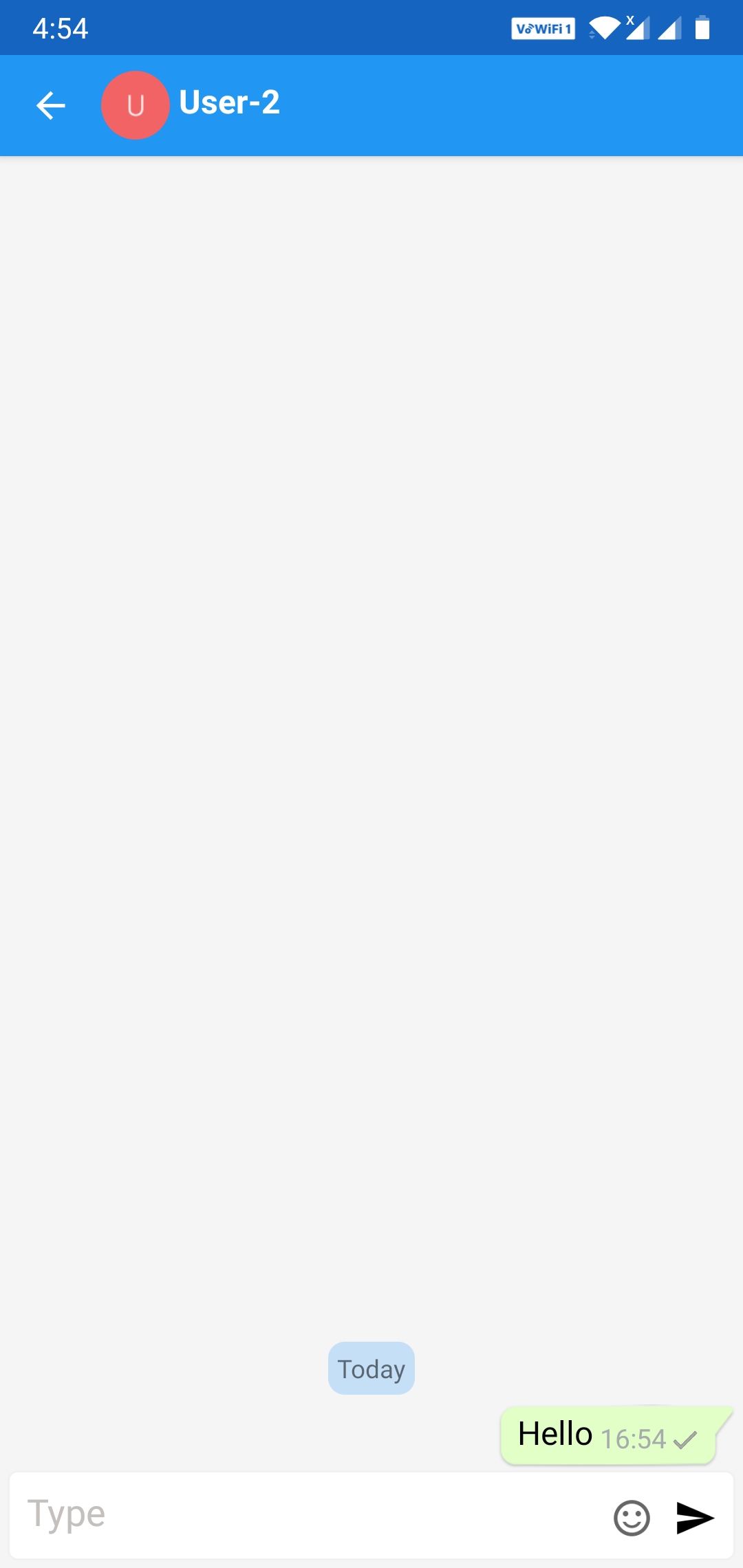
MesiboMessagingFragment renders all the messages for a particular user or a group. All you have to do is to pass the profile of the user or the group. It will read all the messages from the database and display them. It will also listen to new real-time messages and display them as and when received.
Using MesiboMessagingFragment
Set the profile in MesiboMessageScreenOptions and pass it to the fragment:
MesiboUI.MesiboMessageScreenOptions opts = new MesiboUI.MesiboMessageScreenOptions();
opts.profile = Mesibo.getProfile("+15675551234");  // or a group profile
opts.readOnly = false;  // true: hide the interface to send messages

MesiboMessagingFragment fragment = new MesiboMessagingFragment();
fragment.setOptions(opts);

getSupportFragmentManager().beginTransaction()
        .add(R.id.fragment_container, fragment).commit();
Forward onActivityResult of your activity to the fragment, as it is used for media selection.
Other settings, for example, whether missed calls are shown (showMissedCalls), the attachment options, texts and colors are set in MesiboUiDefaults. Refer to Messaging UI Settings.
Customizing Message Rendering
MesiboMessagingFragment renders all the messages using a default layout. Although the default layout beautifully meets the requirements of the most, you can customize each and every message if required.
There are essentially three basic elements that form a chat window
Incoming chat view Incoming chat view renders all the received messages. By default, it is shown on the left side of the screen.
Outgoing chat view Outgoing chat view renders all the outgoing and sent messages. By default, it is shown on the right side of the screen. It is similar to incoming chat view but additionally shows message status.
Data view Data view renders non-message data like date, missed calls etc. By default, it is shown in the center of the screen.
To customize them, implement MesiboUIListener and set it with MesiboUI.setListener:
public class UIListener implements MesiboUIListener {

    @Override
    public boolean MesiboUI_onInitScreen(MesiboUI.MesiboScreen screen) {
        // add menu items, change the toolbar, ...
        return false;
    }

    @Override
    public MesiboRecycleViewHolder MesiboUI_onGetCustomRow(MesiboUI.MesiboScreen screen, MesiboUI.MesiboRow row) {
        // your own view holder for this row, or null for the default rendering
        return null;
    }

    @Override
    public boolean MesiboUI_onUpdateRow(MesiboUI.MesiboScreen screen, MesiboUI.MesiboRow row, boolean last) {
        // change the views of the row (row.message has the message)
        return false;
    }

    @Override
    public boolean MesiboUI_onClickedRow(MesiboUI.MesiboScreen screen, MesiboUI.MesiboRow row) {
        return false;
    }

    @Override
    public boolean MesiboUI_onShowLocation(Context context, MesiboProfile profile) {
        return false;
    }
}
These methods are very similar to RecyclerView adapter methods. Refer to Customizing User Interface and Message Rendering for details of each method.
Creating the ViewHolder
Below is a sample view holder extending MesiboRecycleViewHolder, returned from MesiboUI_onGetCustomRow
public class IncomingMessageViewHolder extends MesiboRecycleViewHolder {
    TextView mMessageText;

    public IncomingMessageViewHolder(View v) {
        super(v);
        mMessageText = v.findViewById(R.id.textview_message);
    }
}