Building the Open-Source Conferencing App for Javascript
Gone through the Quick Start with Mesibo Conferencing API - Javascript and have a basic familiarity with mesibo conferencing APIs. .
A webserver with HTTPS support to host the Web App.
Hosting the App
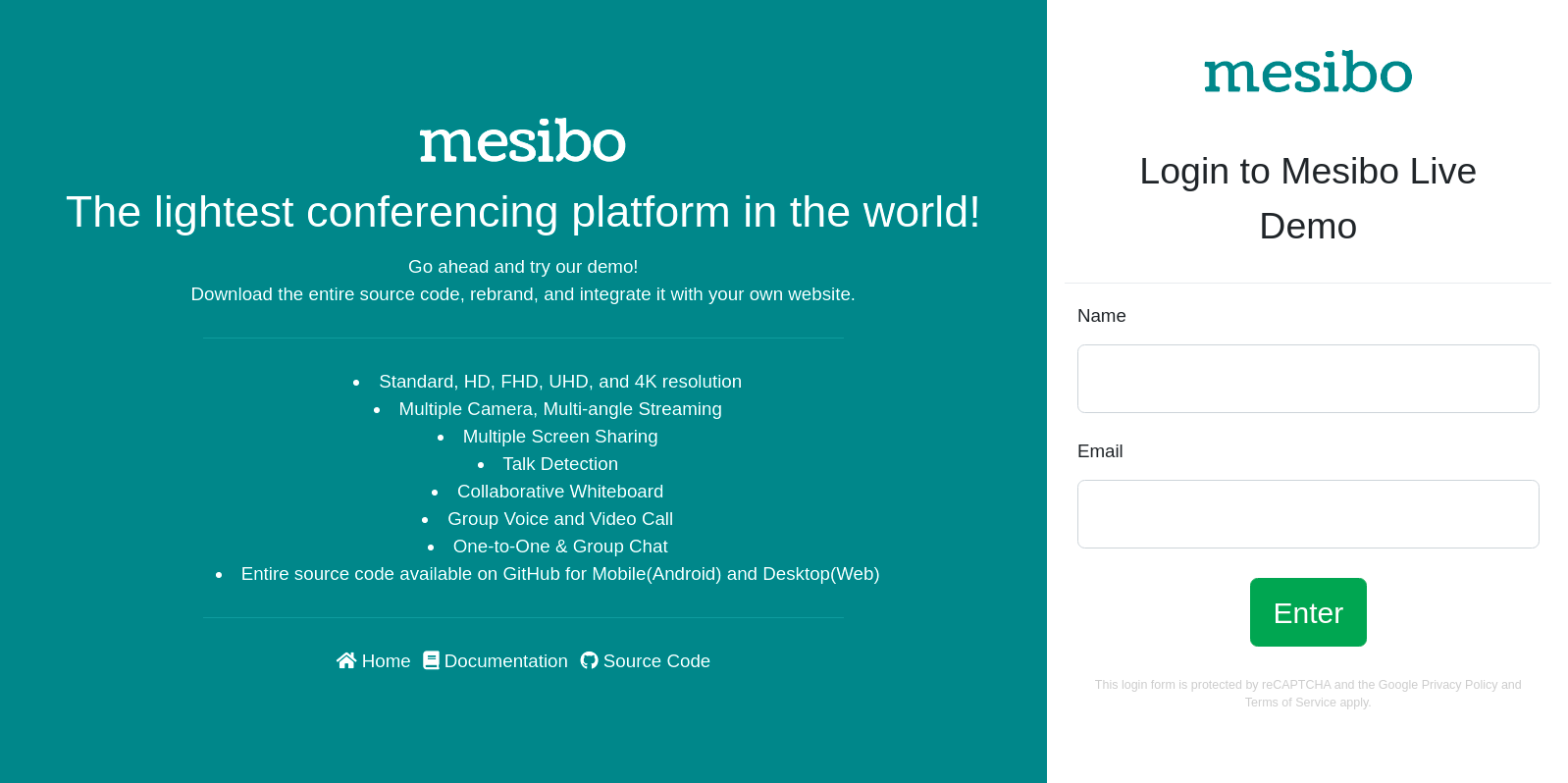 Running the web app is as simple as:
- Open the folder web/live-demo
- Serve this folder securely(*requires HTTPS)
- Open
index.htmlin your web browser - That’s it! You should now see the login page
Invoke the login REST API as follows. Refer to the source code in login.js.
...
 sendRequest(MESIBO_API_BACKEND, loginCallback, 'op=login&appid=' + appid + '&email=' + email + '&name=' + name + '&code=' + code);
...
If login is successful, your server will generate an access token using mesibo User Management API and send it to you in the response. You need to use this access token later while initializing the mesibo real-time API. Refer to the example source code in login.js to learn more.
function loginCallback(r) {
  ...
  var resp = JSON.parse(r);
  var token = resp['token'];
  if (resp.result == 'OK') {
    ...
    if (isValidString(token)) {

       ...
       // Store token
      _storeLoginCredentials(resp);
    }
    ...
}
Refer to the source code here
var request = 'token=' + room.token + '&op=setgroup&name=' + room.name + '&resolution=' + room.quality + '&captcha=' + token;

sendRequest(MESIBO_API_BACKEND, createRoomCallback, request);
If a room is created successfully using setgroup, you will receive the room pin and spin in the response. See login.js
function createRoomCallback(r) {
  var resp = JSON.parse(r);

  if ('OK' == resp.result) {
    var rv = _storeRoomCredentials(resp);
    ...
  }
  ...
}
Refer to the function _storeRoomCredentials.
Share the room-id and room-pin(either pin for active participants or spin for subscriber-only participants) with other users who you want to join the conference. Refer to the source code here to see how the invite text is generated in the app.
Refer to login.js
var request = 'token=' + room.token + '&op=joingroup&gid=' + room.gid + '&pin=' + room.pin + '&captcha=' + token;
sendRequest(MESIBO_API_BACKEND, enterRoomCallback, request);
If joingroup is successful, you can enter the room and start the group call. See login.js.
function openRoom(groupid) {
  if (!isValid(groupid) || groupid <= 0)
    return -1;

  var room_page = isMobileDetected() ? 'mobile.html' : 'index.html';
  window.open(room_page + '?room=' + groupid, '_self');
}
Refer to controller.js
$scope.live = $scope.mesibo.groupCall($scope, $scope.room.gid);
$scope.live.join($scope);

if (!isValid($scope.room.publish) || $scope.room.publish != 1) {
  toastr.error('You do not have the permission to publish');
}
else {
  if($scope.room){
    var init_audio = $scope.room.init.audio;
    var init_video = $scope.room.init.video;
  }
  $scope.publisher = $scope.live.createPublisher(0);
  $scope.publisher.setVideoSource(MESIBOCALL_VIDEOSOURCE_CAMERADEFAULT);

  $scope.publisher.call();
}
In this app, we have implemented GroupCallListener in controller.js.
When someone joins the room and starts publishing, you will receive their Participant object through MesiboGroupCall_OnPublisher.
$scope.MesiboGroupcall_OnPublisher = function(p, joined) {

  ...
  $scope.subscribe(p, true, true);
  ...
};
When you make a call using the
callmethod and you are connected, MesiboGroupcall_OnConnected will be called.Once you are connected, you will be notified when you receive the video stream through the listener MesiboGroupcall_OnVideo
When a publisher mutes audio or video, you will be notified through MesiboGroupcall_OnMute
When a publisher starts talking, MesiboGroupcall_OnTalking will be called (Talk Detection).
When a publisher leaves the conference, MesiboGroupcall_OnHangup will be called
When you receive the video stream from a participant MesiboGroupcall_OnVideo will be called. You can then use, setVideoView to display them.
MesiboGroupcall_OnMute is called when the publisher mutes audio or video.
$scope.MesiboGroupcall_OnMute = function(p, audioMuted, videoMuted, remote) {
  if(remote){
    // Remote participant has muted
  }

  // Check mute status
  if(audioMuted){
    // Audio Muted
  }

  if(videoMuted){
    // Video Muted
  }

};
You can toggle the audio using toggleAudioMute and toggle the video using toggleVideoMute.
MesiboGroupcall_OnTalking is called when the participant starts or stops talking.
GroupCallInProgressListener.prototype.MesiboGroupcall_OnTalking = function(participant, talking) {
    if(talking){
      // If talking is true, participant started talking
      // if it is false, participant stopped talking
      // Handle talking. For example, Show a talking icon
    }
}
Refer to the source code in controller.js for an example where we change the video source.
$scope.getLocalScreen = function(screen_id){
  if(!isValid(screen_id) || screen_id <= 0)
    return null

  var screen = null;

  for (var i = $scope.local_screens.length - 1; i >= 0; i--) {
    screen = $scope.local_screens[i];
    if(screen.getType() === screen_id)
      return screen;
  }

  //No existing screen with that id, create & return a new one
  screen = $scope.live.createPublisher(screen_id);
  screen.setVideoSource(MESIBOCALL_VIDEOSOURCE_SCREEN);
  if(!screen)
    return null;

  $scope.local_screens.push(screen);

  return screen;
}
For example, in this app, we are playing a sound whenever a new participant joins the room. (When MesiboGroupcall_OnPublisher is called).
Refer to showPopupChat
In this app, we have made use of the web popup chat app to display chat popups for group and one-to-one chat.
Whenever a publisher hangs up, MesiboGroupcall_OnHangup will be called.
To, stop viewing a participant you need to call hangup on their participant object.
participant.hangup();
$scope.live.leave();
In this app, we call leave when the exit button is pressed.
In the next part, we will get into setting up your server that contains the REST APIs you are using in this app.